Online Video Conversion Convert Any Video Safely
You searched because you have a video that won’t play, won’t upload, or is too large to share. Maybe it’s a MOV from iPhone, an MKV from a download, a WebM video format from the web, or a huge 4K clip that keeps failing on WhatsApp, Instagram, YouTube, or email. That’s where online video conversion helps.
This guide will show you how to convert videos online without ruining quality, losing audio, breaking subtitles, or wasting hours on slow uploads. You’ll learn which format to choose, what settings matter, why conversions fail, and how to get a clean, compatible video for any device or platform.
Table of Contents
What Online Video Conversion Actually Means
Online video conversion means changing a video file from one format to another using a website instead of installing software.
A good online video conversion typically does 3 things:
- Changes the container (MP4, MOV, MKV, AVI, WebM)
- Changes the codec (H.264, H.265/HEVC, VP9)
- Adjusts output settings (resolution, bitrate, FPS, audio codec)
Real example
- You have an iPhone video:
video.mov - You need it for WhatsApp or a Windows laptop
- You convert it to:
video.mp4(H.264 + AAC)
That’s the most common and safest conversion in the world.
When You Should Convert a Video (And When You Shouldn’t)
Convert your video when:
- It won’t play on your phone or laptop
- You need MP4 for Instagram, YouTube, WhatsApp, Facebook
- Your file is too large and needs compression
- You need to change resolution (4K → 1080p, 1080p → 720p)
- You need a different format for editing or presentation
Don’t convert if:
- Your video already works everywhere (usually MP4 H.264)
- You’re converting only to “increase quality”
- Converting cannot add quality that isn’t there.
Tip: If your real goal is size reduction, you’re not just converting. You’re compressing. That’s a different job (but often done in the same tool).
The 5 Formats You’ll Use 95% of the Time
If you’re confused by formats, here’s the simple truth:
1) MP4 (Best overall)
- Best compatibility
- Works on iPhone, Android, Windows, Mac
- Best for YouTube, Instagram, WhatsApp, Facebook
- Usually uses H.264 (AVC) video codec
If you’re unsure, choose convert video to mp4 online.
2) MOV (Best for Apple workflows)
- Great for iPhone and Mac
- Often used in editing
- Bigger file sizes sometimes
If your client uses Final Cut or Apple devices, MOV can be fine.
3) MKV (Best for high-quality archives)
- Holds multiple audio tracks and subtitles
- Great for movies and long recordings
- Not ideal for social apps
Many people search mkv to mp4 converter online because MKV doesn’t upload smoothly.
4) WebM (Best for web)
- Used on websites
- Often VP9 codec
- Not friendly for editing or mobile sharing
Common conversion: convert webm to mp4 online.
5) AVI (Old but still requested)
- Mostly for legacy systems
- Often huge files
- Not ideal today
Still, people often need convert mp4 to avi online for older software. according to Wikipedia video file format
The Best Default Settings (So You Don’t Ruin Quality)
Most people lose quality because they pick random settings.
Here are safe defaults that work almost everywhere:
For social media (Instagram, WhatsApp, Facebook)
- Format: MP4
- Video codec: H.264
- Audio codec: AAC
- Resolution: 1080p (or 720p if size matters)
- FPS: keep same as original
For YouTube uploads
- MP4 + H.264 + AAC
- 1080p or 4K
- Higher bitrate is okay (YouTube compresses anyway)
For email or PowerPoint
- MP4
- 720p
- Medium bitrate
- Small file size matters more than perfect detail
If you’re creating a presentation, you’ll also like this:
Use the Image to PDF Converter to bundle screenshots or slides into a single file
Step-by-Step: How to Convert Video Online (The Safe Way)
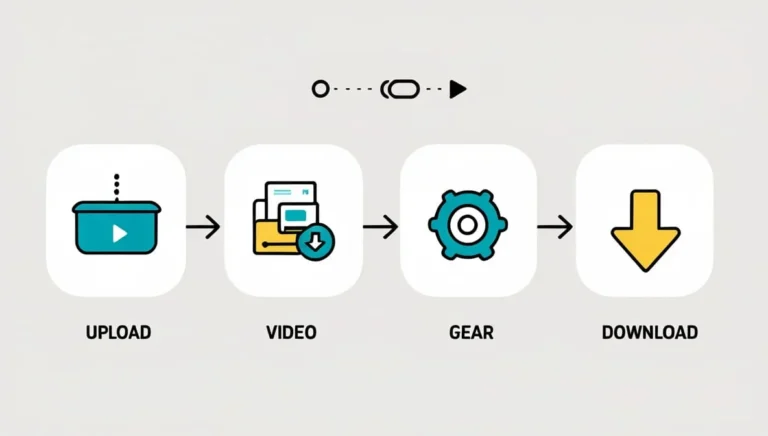
Here’s the exact process that avoids 90% of problems.
Step 1: Check what you already have
Before converting, know your input file:
- Is it MOV, MKV, WebM, MP4?
- Is it 4K?
- Is it recorded on iPhone?
If you’re working with content sizes a lot, you may also find the Length Converter Tool useful for production notes and dimensions:
Step 2: Decide the output format
Use this cheat sheet:
- For almost everything → MP4
- For Apple editing → MOV
- For old systems → AVI
- For web usage → WebM
Step 3: Choose conversion settings
If you don’t understand settings, don’t touch advanced options.
Pick:
- Same resolution
- Same FPS
- MP4 + H.264 + AAC
Step 4: Convert and download
After conversion:
- Play the file fully
- Check audio sync
- Check the first 10 seconds and last 10 seconds
Step 5: If the file is still too big, compress
Compression is usually the next step.
If you’re working with images too (thumbnails, previews, posters), please use our Image compressor tool:
How to Choose the Best Online Video Conversion (Without Getting Tricked)
A lot of “free online video conversion” sites are risky.
Here’s what actually matters.
1) No forced signup
A no signup video conversion is safer and faster.
2) No watermark
A serious converter doesn’t add branding.
Many users specifically search:
- free mp4 converter online no watermark
- convert video without watermark
3) Clear privacy policy
If you’re uploading private videos (family, client work, business files), this is non-negotiable.
4) Supports modern codecs
A good video transcoder online should support:
- H.264
- H.265/HEVC
- VP9
5) Doesn’t break audio
Bad converters often:
- Remove sound
- Convert audio to a weird codec
- Desync the timeline
Is Online Video Conversion Safe?
This is one of the most important questions, and the honest answer is:
It depends on what you upload and where you upload it.
Online conversion is usually safe if:
- You’re converting public content
- You’re converting memes, YouTube clips, gameplay
- You don’t care if the file is stored temporarily
Avoid online conversion if:
- Your video contains private documents
- Your video contains client data
- Your video is sensitive personal content
Best practice
If privacy matters:
- Use offline software
- Or only use trusted services with clear policies
Google’s general account safety guidance is a good baseline for how to think about file uploads and privacy. (Google Safety Center)
Why Your Video Conversion Takes So Long (And How to Fix It)
If you searched why does video conversion take long, here are the real reasons.
1) Your video is huge
4K videos can be massive.
Example:
- 4K 60fps iPhone video
- 3 minutes long
- Can be 1GB+ easily
2) Your upload speed is slow
Online conversion requires upload first.
If your internet upload is 5 Mbps, a 1GB file will take a long time.
3) The converter is re-encoding (not just changing format)
Re-encoding is heavy work.
It’s what makes the file smaller and more compatible.
4) Server load
Free tools often have limited resources.
Quick fixes
- Convert to 1080p instead of 4K
- Keep FPS same (don’t force 60fps)
- Use MP4 + H.264
- Try smaller segments (split the video)
How to Convert Without Losing Quality (The Real Truth)
Many people search:
- convert video without losing quality
- keep quality while converting video
Here’s the truth:
You can avoid major quality loss, but you can’t “upgrade” quality.
Conversion is like re-saving a photo.
If you compress too hard, quality drops.
To keep quality:
- Keep resolution same
- Keep bitrate reasonable
- Use H.264 (or H.265 for better compression)
- Avoid converting multiple times
Common mistake
People do this:
MOV → MP4 → MP4 again → MP4 again
Each conversion loses more detail.
Best Conversions for Popular Formats (Quick Answers)
This section is designed to end the search fast.
MOV to MP4 (iPhone videos)
Use:
- MP4
- H.264
- AAC
This solves most iPhone sharing issues.
MKV to MP4
Use:
- MP4
- H.264
- Keep audio track as AAC
This is the best option for compatibility.
WebM to MP4
Use:
- MP4
- H.264
Perfect for editing and mobile.
FLV to MP4
Use MP4, H.264.
FLV is outdated.
WMV to MP4
Common for older Windows recordings.
MTS to MP4
Common for DSLR and camcorder footage.
MPEG to MP4
Often used in older downloads and DVDs.
Convert Video for WhatsApp, Instagram, YouTube, Facebook
This is where most conversions fail because each platform has different rules.
Convert video for WhatsApp
WhatsApp prefers:
- MP4
- H.264
- AAC
- Smaller file size
If your file is huge, convert 1080p → 720p.
Convert video for Instagram
Instagram prefers:
- MP4
- H.264
- AAC
- Correct aspect ratio
Common mistake:
Uploading a landscape video into Reels without cropping.
Convert video for YouTube
YouTube accepts many formats, but MP4 is safest.
Convert video for Facebook
MP4 works best.
Avoid odd frame rates.
Convert Video for iPhone, Android, Windows, Mac
iPhone
- MP4 works
- MOV works
- HEVC works but may cause sharing issues
Android
- MP4 is best
- Avoid MOV if possible
Windows
- MP4 is best
- MKV sometimes plays but not always
Mac
- MOV and MP4 both fine
- MKV requires extra players
Convert Video Resolution (4K, 1080p, 720p)
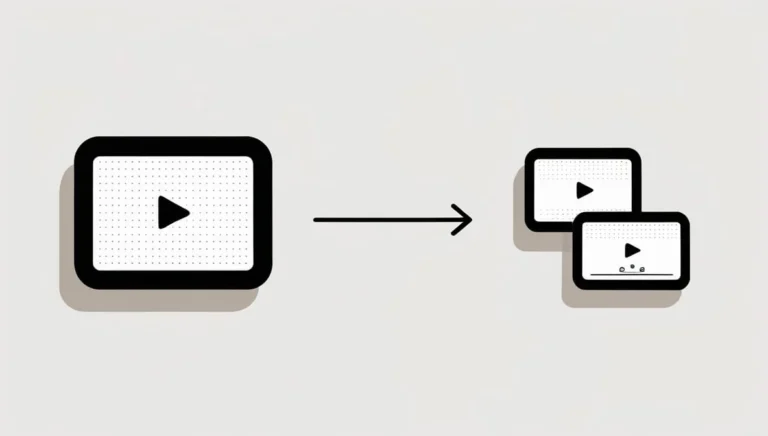
Resolution affects:
- File size
- Upload speed
- Playback smoothness
When to keep 4K
- YouTube upload
- Professional archive
- Big-screen playback
When to convert 4K to 1080p
- Faster conversion
Many users specifically search:
- convert 4k video to 1080p online free
- convert 1080p to 720p online
Practical tip
If your goal is sharing, 1080p is usually the sweet spot.
Change FPS (Frame Rate) Without Breaking the Video
Frame rate changes can cause:
- Choppy motion
- Audio sync issues
- Weird stuttering
Best rule
Keep FPS the same as the original.
Only change FPS when:
- Your target platform requires it
- Your video is glitching due to an odd FPS
Change Video Bitrate (The Setting That Controls File Size)
Bitrate is the biggest factor in file size.
If your file is too big:
Reduce bitrate slightly instead of destroying resolution.
Common mistake
People drop resolution from 1080p to 480p when they only needed a bitrate reduction.
Convert Video Audio Codec (AAC, MP3, etc.)
If your converted file has no sound, it’s usually an audio codec issue.
Best audio settings for MP4
- AAC
- 128 kbps to 256 kbps
- Stereo
Extract MP3 from video online
If your goal is audio only, don’t convert the whole video.
Many people search:
- extract mp3 from video online free
- mp3 from video online
Convert Video and Keep Subtitles (What Most Converters Break)
MKV files often contain:
- Embedded subtitles
- Multiple audio tracks
When you convert MKV → MP4, you can lose subtitles.
Two safe options
- Burn subtitles into the video (hard subtitles)
- Export subtitles separately as
.srt
Common mistake
People assume subtitles will automatically transfer.
Convert Multiple Videos Online (Batch Conversion)
Batch conversion is helpful if you have:
- 10+ clips
- A folder of recordings
- Social media content to standardize
But online tools may limit batch conversion because of server load.
Best practice
- Convert in small groups
- Use consistent settings
- Name your files properly
If you’re managing content for multiple platforms, the Free Online Word Counter Tool can help for captions and descriptions:
Convert Large Video Files (Up to 1GB): What to Expect
People often search:
- convert video 1gb online free
- online video conversion large files
Here’s the honest reality:
Large files are hard online because:
- Upload takes time
- Conversion takes time
- Many sites cap file size
- Browser can crash
What works better
- Convert to 1080p
- Trim the video first
- Upload from a stable Wi-Fi network
Convert Video Without Software (Chrome, Browser, No Download)
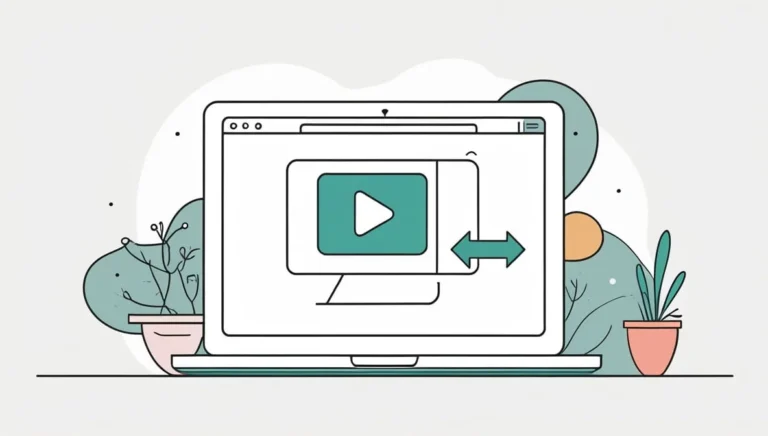
If you want a browser video conversion with no download, you’re not alone.
This is popular because:
- No installation
- Works on office PCs
- Works on shared computers
People often ask:
- can i convert video on chrome
- convert video on browser
- online video conversion no download
Practical tip
Use Chrome or Edge for better stability with big uploads.
Convert Video Without Watermark (What to Watch For)
A good converter should not add watermarks.
If you see watermarks, it’s usually because:
- The site is not truly free
- The output is locked behind payment
- The “download” button is fake
How to spot a scammy converter
- Too many ads
- Fake download buttons
- Redirects
- Requires browser extensions
Common Online Video Conversion Problems (And Fixes)
Problem 1: Converted video has no audio
Fix:
- Use AAC audio
- Avoid “copy audio” if it fails
Problem 2: Video is out of sync
Fix:
- Keep FPS same
- Don’t force 60fps
- Don’t change audio sample rate
Problem 3: Output file is bigger than original
Fix:
- Reduce bitrate
- Switch codec to H.265 / HEVC codec (if supported)
Problem 4: Video looks blurry
Fix:
- Don’t reduce resolution
- Don’t over-compress
- Keep bitrate reasonable
Problem 5: Conversion fails at 99%
Fix:
- Try smaller file
- Try different browser
- Avoid unstable internet
Best Practices That Save Time (And Keep Your Video Clean)
Here are practical habits that make conversions smoother:
- Convert once, not repeatedly
- Always test the final file before sending
- Use MP4 for sharing
- Keep a copy of the original
- Avoid converting “just because”
If you’re sharing converted videos with QR access (for clients or presentations), you can generate a quick QR code using our QR code Generator Tool:
Quick Comparison Table: Which Format Should You Choose?
| Your Goal | Best Output Format | Why |
|---|---|---|
| Share anywhere | MP4 | Best compatibility |
| iPhone editing | MOV | Apple-friendly |
| Archive + subtitles | MKV | Keeps tracks/subtitles |
| Website playback | WebM | Web optimized |
| Old software | AVI | Legacy support |
Real-Life Use Cases (So You Know You’re Doing It Right)
Use case 1: You recorded on iPhone and need WhatsApp
Convert:
- MOV → MP4
- 1080p → 720p if size is too big
Use case 2: You downloaded an MKV and it won’t play
Convert:
- MKV → MP4
- Keep audio as AAC
Use case 3: You need a video for PowerPoint
Convert:
- MP4
- 720p
- Medium bitrate
Use case 4: You want a YouTube-ready upload
Convert:
- MP4
- 1080p or 4K
- H.264
If you’re also preparing YouTube assets, grab your preview thumbnail images with our YT Thumbnail Downloader Tool:
And for a full guide “How To use This Tool“
Mistakes People Make (That Waste Hours)
Here are the most common mistakes:
1) Converting to AVI “because it’s common”
AVI is not modern-friendly and can create huge files.
2) Using random FPS settings
This causes stutter and audio sync issues.
3) Choosing weird codecs
If you want compatibility, don’t overthink it:
- MP4 + H.264 + AAC
4) Expecting subtitles to transfer automatically
They usually won’t.
5) Uploading private content to unknown websites
If it’s sensitive, don’t do it online.
Final Checklist Before You Share Your Converted Video
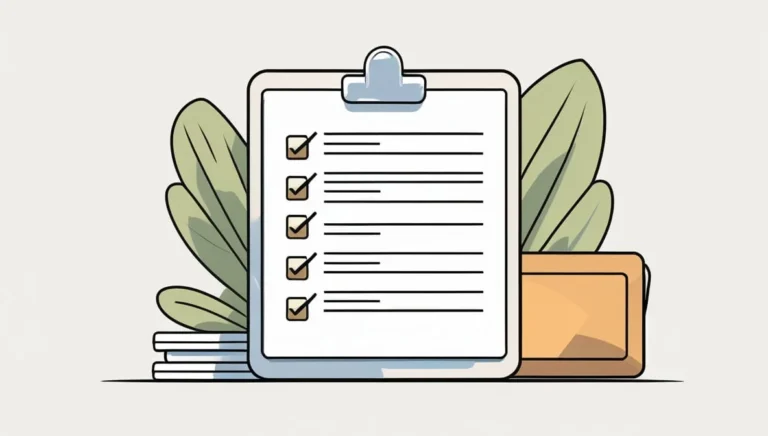
Before you upload or send the converted file, check:
- ✅ Video plays fully
- ✅ Audio works and stays synced
- ✅ File size is reasonable
- ✅ Format is MP4 (if sharing)
- ✅ Resolution matches your goal
- ✅ No watermark
If you’re sharing the file name or captions and need clean formatting, the Invisible Character Generator Tool can help with spacing tricks for social posts:
And Here is Full Guides On different Topics
“What is invisible Characters” “Top 5 uses of invisible characters” “Invisible Unicode Characters Explained” “How to create blank spaces in whats app & instagram” “How to use invisible characters for social media names” “How to generate blank text characters“
Short Author Bio
Written by a practical SEO-focused tool-content writer who builds user-first guides for everyday online utilities. The goal is simple: help you finish the task fast, avoid common mistakes, and get results that actually work on real devices and platforms.
Frequently Asked Questions (FAQs)
Q1. Can I convert large video files with this tool?
Yes, our tool supports large video files. However, processing time may vary based on size.
Q2. Is there any file size limit?
We support generous file sizes. If you face limits, try compressing the video first using our upcoming Video Compressor Tool.
Q3. Will the video lose quality after conversion?
No. Our tool is designed to maintain the highest possible quality during conversion.
Q4. Can I convert a video for Instagram or YouTube?
Absolutely! Choose MP4 with recommended resolutions (1080p or 720p) for social platforms.
Q5. Do I need to install anything?
No installation required. It’s 100% browser-based and works instant
Q6. How to convert video online?
Upload your video to a converter, choose MP4 as output, keep settings default, convert, then download and test playback.
Q7. How to convert video to MP4 online?
Pick MP4 output with H.264 and AAC. This is the safest choice for social media, phones, and laptops.
Q8. Is online video conversion safe?
It can be, but only if you use trusted services and avoid uploading private or sensitive videos.
Q9. Which is the best online video conversion?
The best one is the one that:
Doesn’t add watermark
Doesn’t require signup
Supports MP4 (H.264 + AAC)
Works reliably on large files
Q10. Can I convert video without installing software?
Yes. A browser-based converter works directly in Chrome or Edge without installing anything.
Q11. Why does video conversion take long?
Mostly because your file is large, your upload speed is slow, or the tool is re-encoding the video.